V Rising BepInEx Setup Guide



Welcome to the V Rising BepInEx Mod Community guide.
On the panel to the left of this page you'll see chapters that will guide you through the process of getting BepInEx up and running for V Rising.
Please dm Papaskank42#5986 on Discord if you're interested in helping maintain the guide.
Client
Download
Download the latest release of BepInEx for V Rising from the Thunderstore (https://v-rising.thunderstore.io/package/BepInEx/BepInExPack_V_Rising/)
Installation
- Extract the downloaded archive into a folder (NOT THE GAME FOLDER)
- Inside the extracted folder you will find a folder called
BepInExPack_V_Rising. - Open the
BepInExPack_V_Risingfolder in your file explorer. - Copy all of the contents of this folder into your game folder
steamapps/common/VRising/. - Run the game.
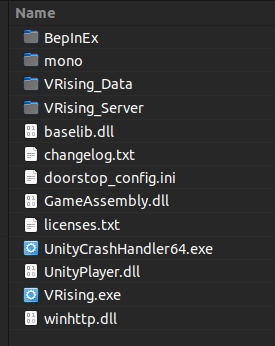
The contents of your games directory should look like this:
Server mods in singleplayer
To run server mods in singleplayer you need the ServerLaunchFix mod. The reason is that even when you're playing singleplayer, the game launches a server for you in the background, and this server will not have the mods you have installed on your client by default. the ServerLaunchFix mod ensures that all mods you have on the client exist on your local server
Server
Windows
Linux
Windows
Base Server Installation
The preferred way to install game server would be via SteamCMD.
- Create a folder for SteamCMD, eg
C:\steamcmd - Download the latest release of SteamCMD (direct download link).
- Extract
steamcmd.exefrom the downloaded archive toC:\steamcmd\ - Create a new Text Document in
C:\steamcmd\calledvrising-update.cmd(make sure file extensions are shown, to avoidvrising-update.cmd.txt) - Rightclick the newly created file and click
Edit, which should be the second option in the context menu.- If you are on Windows 11 click
Show more optionsfirst after rightclicking the file.
- If you are on Windows 11 click
Contents of vrising-update.cmd:
steamcmd.exe +login anonymous +app_update 1829350 validate +quit
- Save and close the text editor.
- Doubleclick the
vrising-update.cmdfile and it should install the game files- If it does not, and instead opens your text editor again, make sure to disable Hide file Extensions in your file explorer. and remove
.txtfrom the file name and try again.
- If it does not, and instead opens your text editor again, make sure to disable Hide file Extensions in your file explorer. and remove
- When the window closes, the server should be installed in
C:\steamcmd\steamapps\common\VRisingDedicatedServer\
Adding BepInEx
Download the latest release of BepInEx for V Rising from the Thunderstore (https://v-rising.thunderstore.io/package/BepInEx/BepInExPack_V_Rising/) Click the large Manual Download button.
- Extract the downloaded archive into a folder (NOT THE GAME SERVER FOLDER)
- Inside the extracted folder you will find a folder called
BepInExPack_V_Rising. - Open the
BepInExPack_V_Risingfolder in your file explorer. - Copy all of the contents of this folder into your game folder
C:\steamcmd\steamapps\common\VRisingDedicatedServer\.- Do NOT extract it into
VRisingServer_Data!
- Do NOT extract it into
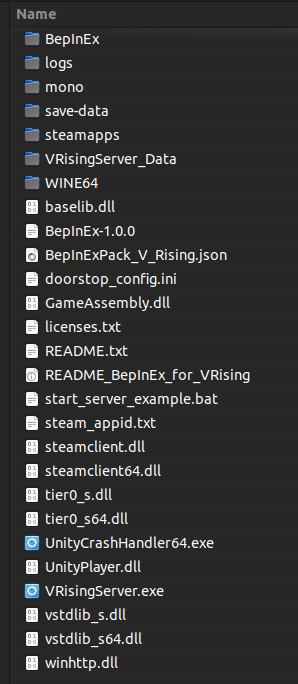
The contents of your server directory should look like this:
- Create a
start.cmdfile inside theC:\steamcmd\steamapps\common\VRisingDedicatedServer\folder.- You should by now know how to create a
.cmdfile and avoid.cmd.txt
- You should by now know how to create a
Contents of start.cmd:
@echo off

REM - Set to your preferred preferences
set SERVER_NAME=Your Servername Here
set SAVE_NAME=World

REM - DO NOT EDIT BELOW THIS LINE
set SERVER_DIR=%~dp0

VRisingServer.exe -persistentDataPath save-data -serverName "%SERVER_NAME%" -saveName "%SAVE_NAME%" -logFile %SERVER_DIR%\logs\VRisingServer.log
- Save and close the text editor
- Run
start.cmdto start the server
To verify that BepInEx is succesfully loaded on the server.
Linux
A Word of Caution:
The scripts referenced in this chapter will write outside of the current working directory and may not run successfully if you do not have permission to read from and or write to /opt
Read Me
Check out Ricin's BepInEx Linux Setup to make installing and setting up BepInEx on Linux easy.
Summary
This will download, install, and run V Rising Dedicated Server via SteamCMD.
Optionally it will download the latest BepInEx Pack for V Rising, and enable it.
Save Files: The save files are located in: ${SERVER_DIR}/save-data/Saves
Config Files: The config files are located in: ${SERVER_DIR}/save-data/Settings
ATTENTION: First Startup can take very long since it downloads the game server files!
Setup & Installation
Download (Debian/Ubuntu Supported)
- Use
git clone https://github.com/ricin/vrising-bepinex-linux.gitto get started. - Run
scripts/setup.shto prepare the server.
Running
- Run
/opt/scripts/start.shto start the server. - A unique server name and password will be generated upon first run.
(you can change them in${SERVER_DIR}/save-data/Settings/ServerHostSettings.json)
Pterodactyl
Read Me
If you have already set-up Pterodactyl then begin this guide from the Setup & Installation portion of the guide below to make the BepInEx changes.
Summary
If you need help installing Pterodactyl refer to their official guide [Pterodactyl Getting Started] (https://pterodactyl.io/panel/1.0/getting_started.html)
Setup & Installation
Download
-
Once you have access to the main admin web interface you need to go to "Nests" then click "Import Egg".
-
You import this egg that is essentially the old V Rising egg modified to include "LOAD_BEPINEX" startup variable.
Running
-
Once the egg has been imported and you have created the server, you need to select the V Rising egg and add "true" to the load BepInEx variable.
-
Then you need to add WINEDLLOVERRIDES="winhttp=n,b" at the start of the startup command.
-
Finished! You can now create the server and it will startup with BepInEx working.
(If you get stuck please refer to these images: ptero-true, ptero-wine).


Modding
V Rising Mod Community - Mod Guide
The mod guide is currently being worked on by the members of the community and will be stored here after a decent iteration has been made.
Until then everyone is encouraged to add to the document.
Links
V Rising Mod Community
The Official V Rising Mod Community Discord.
V Rising Mod Guide
The Official V Rising Mod Guide W.I.P
V Rising Mods
Thunderstore.io is an alternative mod hub for mod creators and individuals alike. It houses the most up-to-date V Rising mods.
V Rising Database
A comprehensive database containing V Rising items, recipes, NPCs, hunts, workstations, abilities and blueprints.
XYO V Rising Database
Contains all the information you need about items, crafting recipes, drop rates and much more.
V Rising Interactive Map
Resource locations, Waygates, Bosses, Quests, Abilities, Cave Entrances & more! Use the progress tracker & add notes to personalize your map!