Windows
Base Server Installation
The preferred way to install game server would be via SteamCMD.
- Create a folder for SteamCMD, eg
C:\steamcmd - Download the latest release of SteamCMD (direct download link).
- Extract
steamcmd.exefrom the downloaded archive toC:\steamcmd\ - Create a new Text Document in
C:\steamcmd\calledvrising-update.cmd(make sure file extensions are shown, to avoidvrising-update.cmd.txt) - Rightclick the newly created file and click
Edit, which should be the second option in the context menu.- If you are on Windows 11 click
Show more optionsfirst after rightclicking the file.
- If you are on Windows 11 click
Contents of vrising-update.cmd:
steamcmd.exe +login anonymous +app_update 1829350 validate +quit
- Save and close the text editor.
- Doubleclick the
vrising-update.cmdfile and it should install the game files- If it does not, and instead opens your text editor again, make sure to disable Hide file Extensions in your file explorer. and remove
.txtfrom the file name and try again.
- If it does not, and instead opens your text editor again, make sure to disable Hide file Extensions in your file explorer. and remove
- When the window closes, the server should be installed in
C:\steamcmd\steamapps\common\VRisingDedicatedServer\
Adding BepInEx
Download the latest release of BepInEx for V Rising from the Thunderstore (https://v-rising.thunderstore.io/package/BepInEx/BepInExPack_V_Rising/) Click the large Manual Download button.
- Extract the downloaded archive into a folder (NOT THE GAME SERVER FOLDER)
- Inside the extracted folder you will find a folder called
BepInExPack_V_Rising. - Open the
BepInExPack_V_Risingfolder in your file explorer. - Copy all of the contents of this folder into your game folder
C:\steamcmd\steamapps\common\VRisingDedicatedServer\.- Do NOT extract it into
VRisingServer_Data!
- Do NOT extract it into
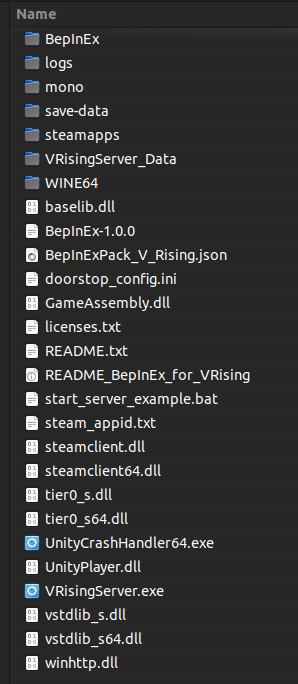
The contents of your server directory should look like this:
- Create a
start.cmdfile inside theC:\steamcmd\steamapps\common\VRisingDedicatedServer\folder.- You should by now know how to create a
.cmdfile and avoid.cmd.txt
- You should by now know how to create a
Contents of start.cmd:
@echo off

REM - Set to your preferred preferences
set SERVER_NAME=Your Servername Here
set SAVE_NAME=World

REM - DO NOT EDIT BELOW THIS LINE
set SERVER_DIR=%~dp0

VRisingServer.exe -persistentDataPath save-data -serverName "%SERVER_NAME%" -saveName "%SAVE_NAME%" -logFile %SERVER_DIR%\logs\VRisingServer.log
- Save and close the text editor
- Run
start.cmdto start the server
To verify that BepInEx is succesfully loaded on the server.